Configuring ASGs by Tag to use the Compute Co-Pilot ASG
Introduction
The new nOps feature Configure By Tag offers increased ease-of-use to users of Compute Copilot. Onboard your ASG to Copilot with Configure By Tag for the following benefits:
-
Integration with any IaC tool, such as Terraform.
-
Multi-configuration capabilities: Configure multiple ASGs at the same time with just a couple of clicks, for quick and easy onboarding.
-
Effortless Configuration: Configure by Tag feature helps clients who frequently modify Auto Scaling Groups (ASGs) save significant time. It eliminates the need to manually go to the nOps dashboard and reconfigure ASGs each time they create, destroy, or recreate ASGs. Tags are automatically managed, for a seamless and time-efficient process.
Prerequisites
- You must have already configured the appropriate Lambda roles for Copilot as per these instructions.
Integrate ASGs by tag
Integrate nOps Compute Copilot with your ASGs by adding the following Tags:
| Tag Key | Tag Value | Required |
|---|---|---|
| nops_copilot_enabled | true | ✅ |
| nops_copilot_launch_template_name | Name of the Launch Template you created in the Compute Copilot ASG Dashboard | ✅ |
| nops_copilot_max_spot_instances | Integer (0-N) | ❌ |
| nops_copilot_max_spot_percentage | Integer (0-100) | ❌ |
| nops_copilot_replace_protected_instances | true | ❌ |
| nops_copilot_min_ondemand_number | Integer (0-N) | ❌ |
| nops_copilot_capacity_rebalance | true | ❌ |
| nops_copilot_config_utilize_ri | true | ❌ |
| nops_copilot_config_utilize_sp | true | ❌ |
| nops_copilot_spot_strategy | One of [LowestPrice, CapacityOptimized, CapacityOptimizedPrioritized, PriceCapacityOptimized]. Default is LowestPrice | ❌ |
nops_copilot_max_spot_instances: Maximum number of Spot instances that Compute Copilot will place as part of your Auto Scaling Group
nops_copilot_max_spot_percentage: Maximum percentage of Spot instances that Compute Copilot will place as part of your Auto Scaling Group.
nops_copilot_replace_protected_instances: This tag allows ASG Lambda to replace the instances that have Scale-in protection or its instances are protected from Scale-in.
nops_copilot_min_ondemand_number: This tag sets the minimum number of On-Demand instances that should be left in the ASG. ASG Lambda won’t do any replacements (On-Demand to Spot) if it has less number of On-Demand instances than specified in the Tag value.
nops_copilot_capacity_rebalance: This tag sets whether ASG should enable\disable the capacity rebalance setting in the ASG MIP settings.
nops_copilot_config_utilize_ri: This tag sets whether ASG should respect and try to optimize for your Reserved Instances commitments.
nops_copilot_config_utilize_sp: This tag sets whether ASG should respect and try to optimize for your Savings Plans commitments.
nops_copilot_spot_strategy: Defines the Spot Allocation Strategy Copilot Lambda is going to use when it launches a Spot instance.
Note: if you delete the Compute Copilot Launch Template used in one or more ASGs, these ASGs will no longer be processed by nOps Compute Copilot.
Configure by Tag:
-
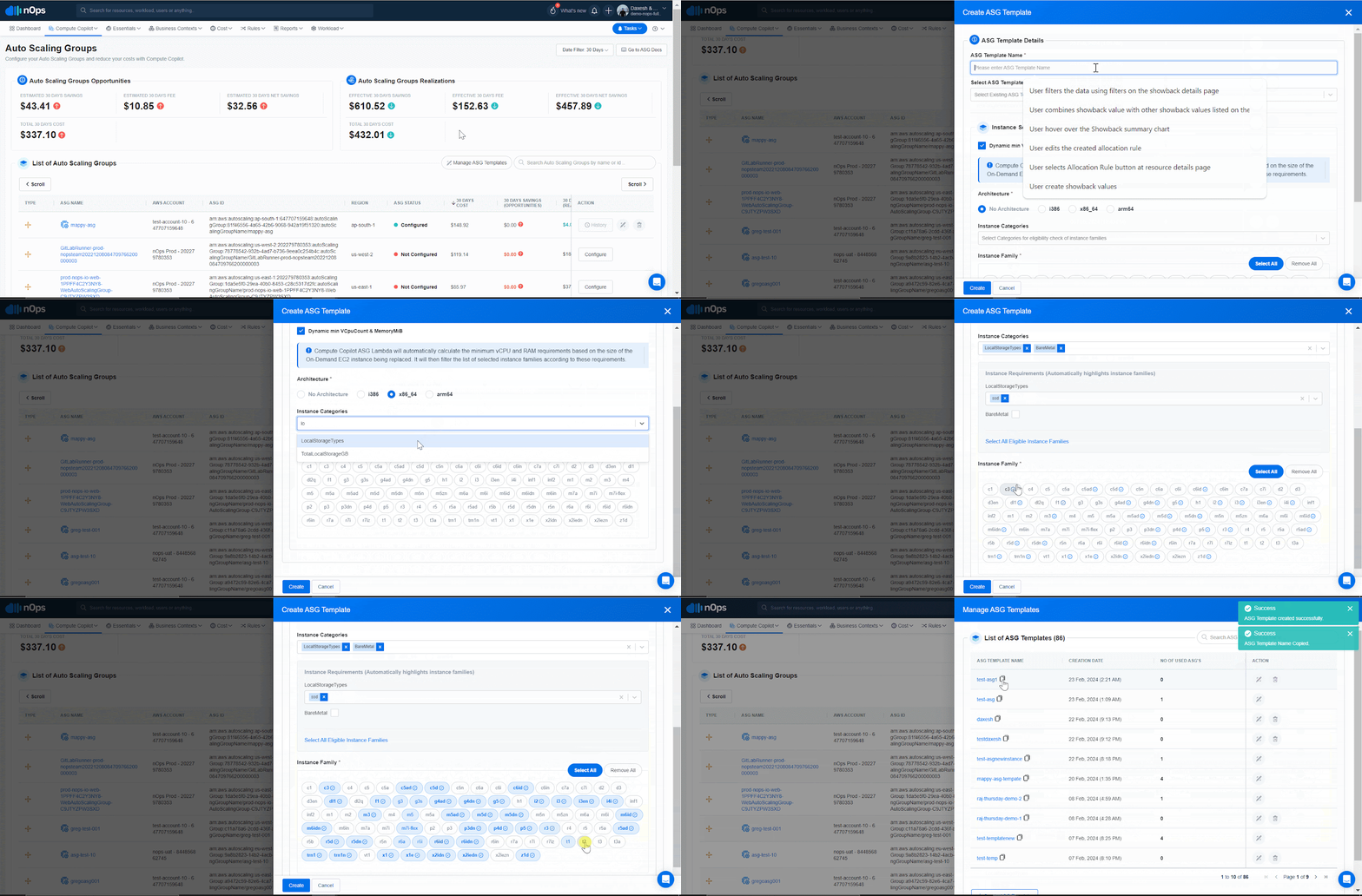
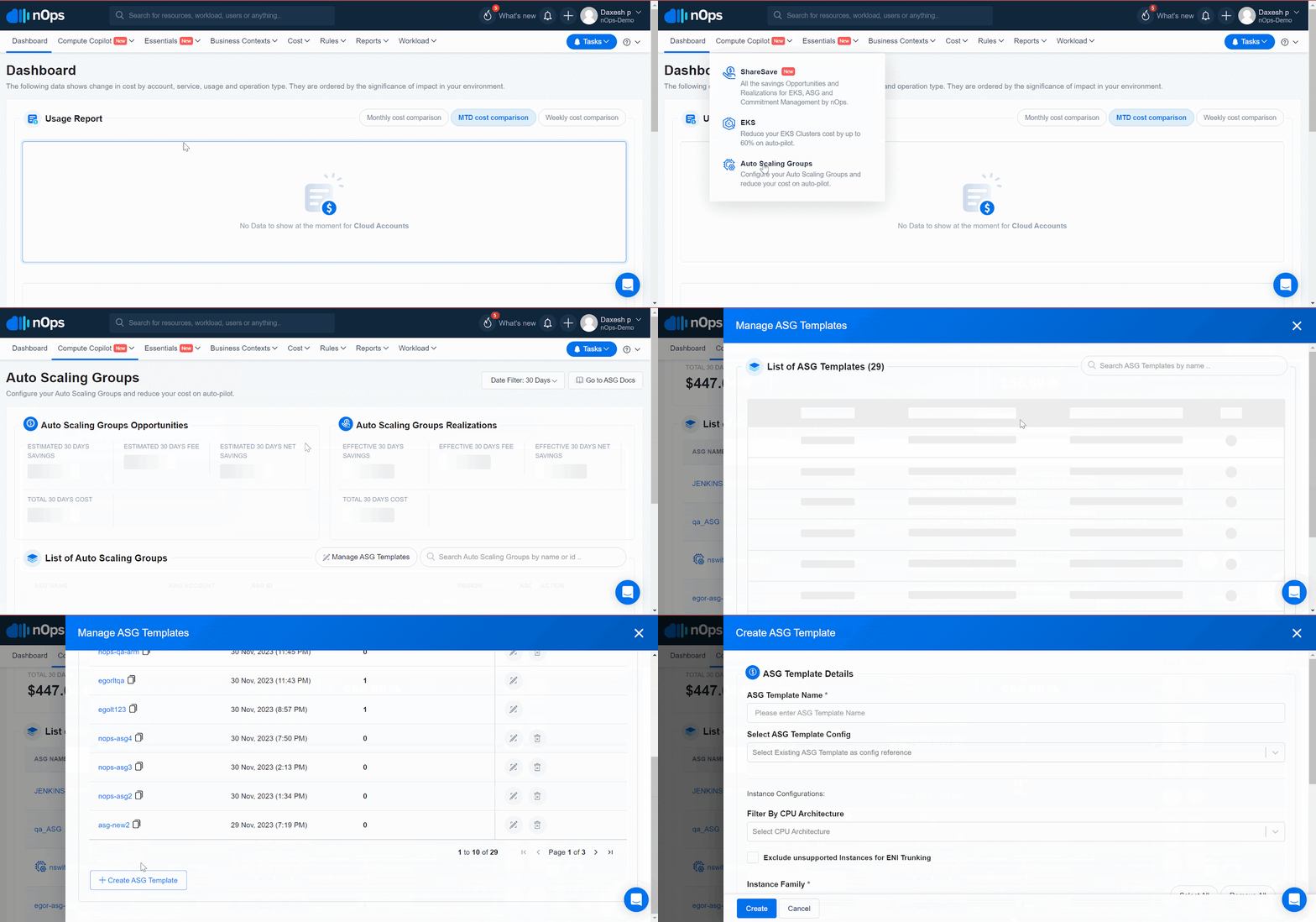
Navigate to Compute Copilot -> Auto Scaling Groups -> Manage ASG Templates.
-
Create ASG Template.
-
Give the ASG template a unique name.
-
Select the CPU architecture based on the AMIs of the ASG you are going to attach the template to.
-
By default, “Dynamic min VCpuCount & MemoryMiB” is checked, setting minimum vCPU and RAM requirements based on the size of the On-Demand EC2 instance being replaced. You can disable this option and set CPU or Memory suitable for your workload from the Instance Requirements list.
-
(Optional) When selecting instance requirements, eligible instance families will be highlighted based on your criteria. To simplify the selection process, you can choose all highlighted options by clicking on the "Select All Eligible Instance Families" link.
-
You can also directly choose the instance families. Compute Copilot will select the most optimal choice for price and stability out of the provided options.
-
Create and Copy the name of the template.
-
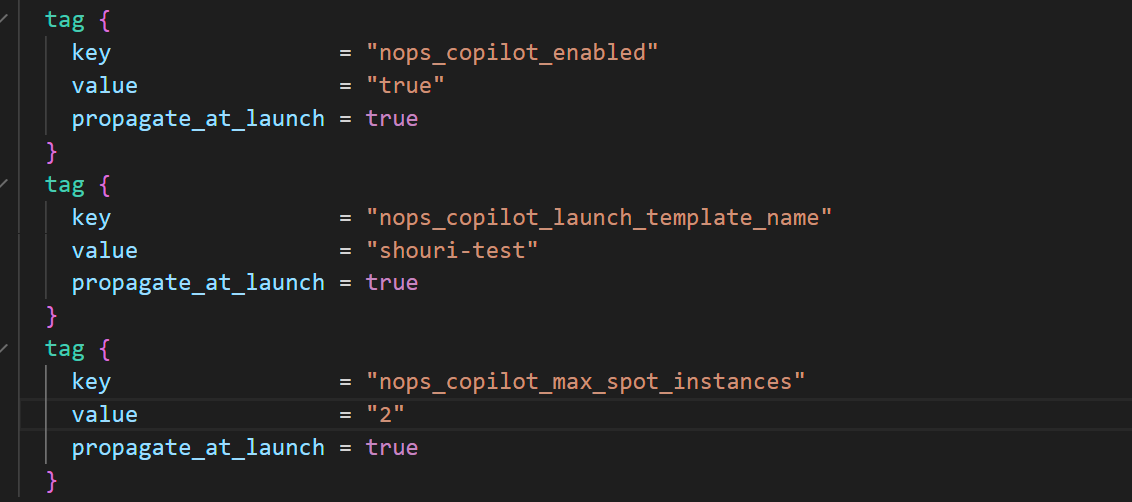
Attach “nops_copilot_enabled = true” and “nops_copilot_launch_template_name = *name you have copied from above*” tags to your ASG.
-
Optional tags are “nops_copilot_max_spot_instances” and “nops_copilot_max_spot_percentage”.
-
After creating the ASG using IaC with the tags specified, within a few minutes the ASG will reflect a “connected” status with the all the appropriate information (template name, Spot percentage / number of Spot instances).

FAQ
1. What happens to my ASGs if I delete the Launch Template in nOps Compute Copilot?
If you delete the Compute Copilot Launch Template used in one or more ASGs, these ASGs will no longer be processed by nOps Compute Copilot.
2. Why don’t I see Spot instances as soon as I create the ASG using IAC while leveraging Configure by Tag?
If a reliable and cheaper Spot is available in the Spot market and in the same AZ, it will take up to 30 minutes to see a Spot instance as part of your ASG.
3. Can I use both “nops_copilot_max_spot_percentage” and “nops_copilot_max_spot_instances” tags on the same ASG?
Yes, you can use both tags.
4. What happens if I don't use either of the tags “nops_copilot_max_spot_percentage” and “nops_copilot_max_spot_instances” on my ASG?
If you don’t use either tag, by default, Compute Copilot will try to replace all your On-Demand instances as part of ASG to the Spot instances
5. What happens if I don’t use the tag “nops_copilot_replace_protected_instances” on my ASG protected with Scale-In protection?
If you don’t use the tag, by default it is set to FALSE, so Compute Copilot will not replace protected instances due to Scale-In protection.